Downloading
and Starting
CM-e-Lect™ Installer and Updaters
Downloading and starting a file from the Internet involves screens
that are dependant on your System and Browser.
Please choose your configuration from the table below:
|
Your Windows Version |
Your Browser Version |
Steps & Screens |
|
98 |
IE 5 |
   |
|
ME |
IE5.5 |
|
|
ME |
IE 6 |
|
|
2000 SP2 |
IE 5 |
 |
|
XP |
IE 6 |
|
|
XP SP1 |
IE 6 |
|
|
XP SP2 |
IE 6 |
|
|
Any |
Opera 7 |
|
|
Any |
Firefox 0.9 |
 |
|
Any |
Netscape 7.1 or Mozilla 1.7 |
 |
Windows 98 Version IE 5
Step 1
Choose the Open or Run option.
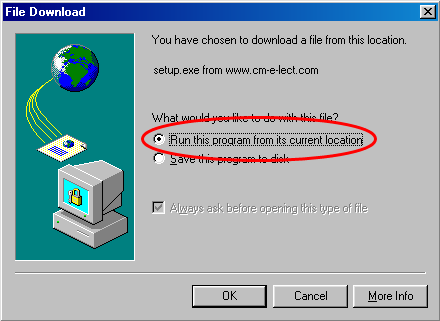
Ignore the warning, it is caused by an outdated Microsoft
Certificate.
Run Windows Update for a root Certificate update to resolve this
issue.
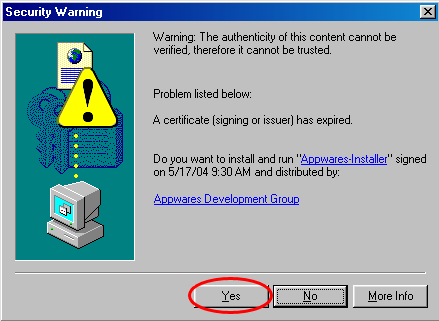
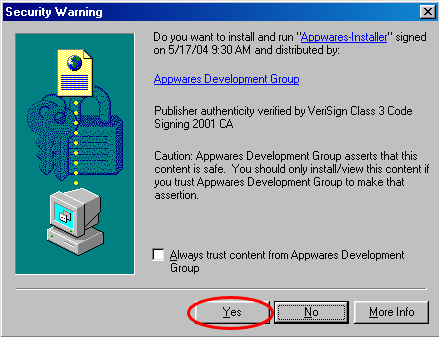
Answer Yes to the security question.
The software is digitally signed by the developer
AppWares Development Group as indicated.
Windows ME Version IE5.5
Step 1
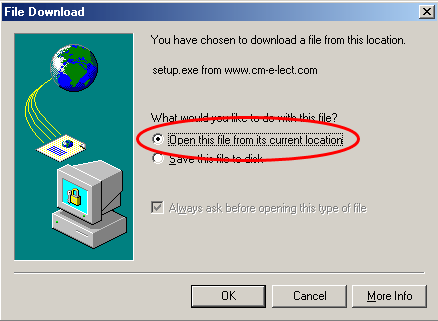
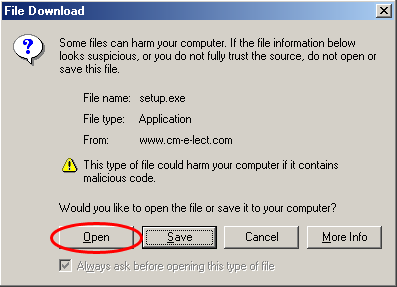
Choose the Open or Run option.
Windows ME Version IE6
Step 1
Choose the Open or Run option.
Windows 2000 SP2 IE 5
Step 1
Choose the Open or Run option.
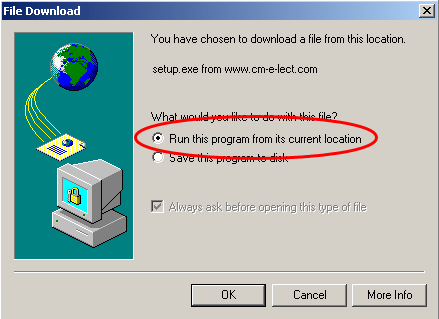
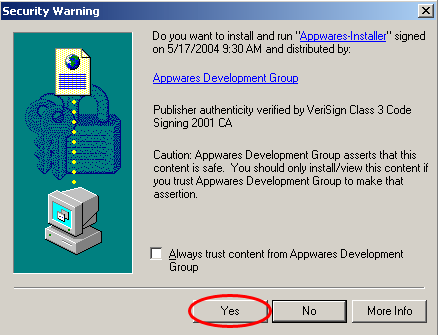
Answer Yes to the security question.
The software is digitally signed by the developer
AppWares Development Group as indicated.
Windows XP Version IE 6
Step 1
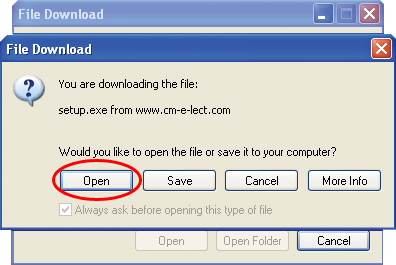
Choose the Open or Run option.
Windows XP SP1 Version IE 6
Step 1
Choose the Open or Run option.

Windows XP SP2 Version IE 6
Step 1
Choose the Open or Run option.
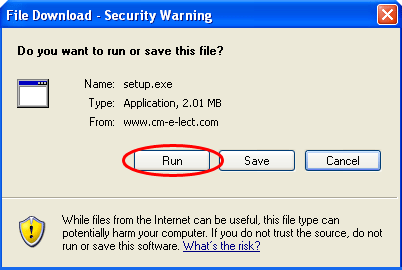
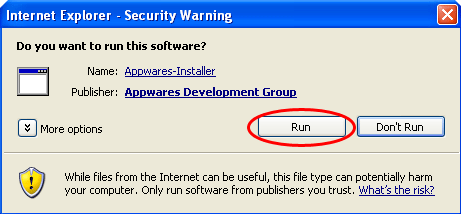
Answer Run to the security question.
The software is digitally signed by the developer
AppWares Development Group as indicated.
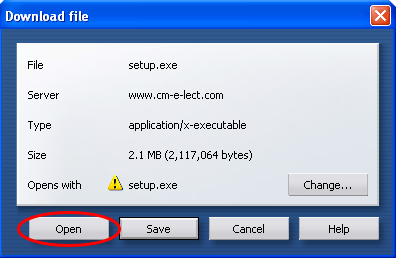
Opera 7
Step 1Choose the Open or Run option.
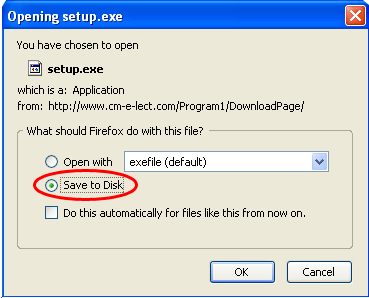
Firefox 0.9
Step 1
Choose the Save to disk option.
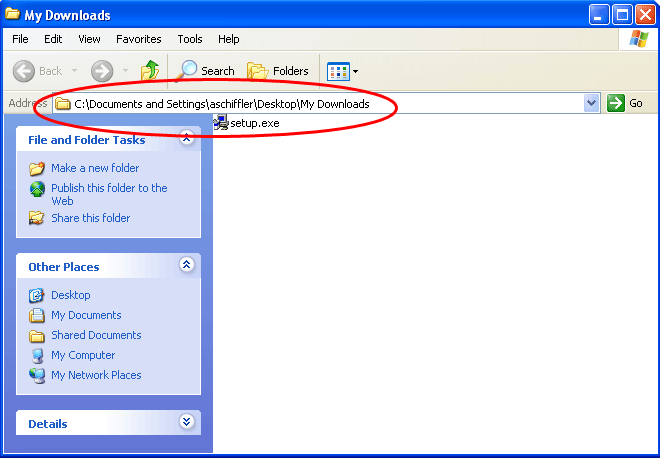
Save the executable into a folder (My Downloads
in this example).
The folder could be the desktop or a newly created one.

Navigate to the folder you saved your executable in.
Double click to launch it.
Netscape 7.1 or Mozilla 1.7
Step 1
Choose the Save to disk option.
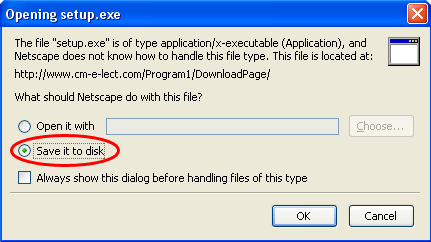
Save the executable to My Downloads.

Launch File via the Download Manager.

Accept the security message should it be shown.
